Guide · Google Slides
Turn Google Slides into a narrated video
Import your deck, talk through each slide in your own voice, and export a captioned MP4 — in about the time it takes to present it once. No screen recorder, no video editor.
A great deck isn't a video yet
Google Slides is a great place to build a deck. Turning that deck into something people can watch on their own — a training module, an onboarding walkthrough, a recorded lecture — is where it gets slow.
The usual route is a screen recorder plus a video editor: present the whole deck in one take, trim the mistakes on a timeline, add captions by hand, then export and upload. Stumble on slide 14 and you start over.
How to do it
Three steps in the 30hands app
- 1
Import your Google Slides deck
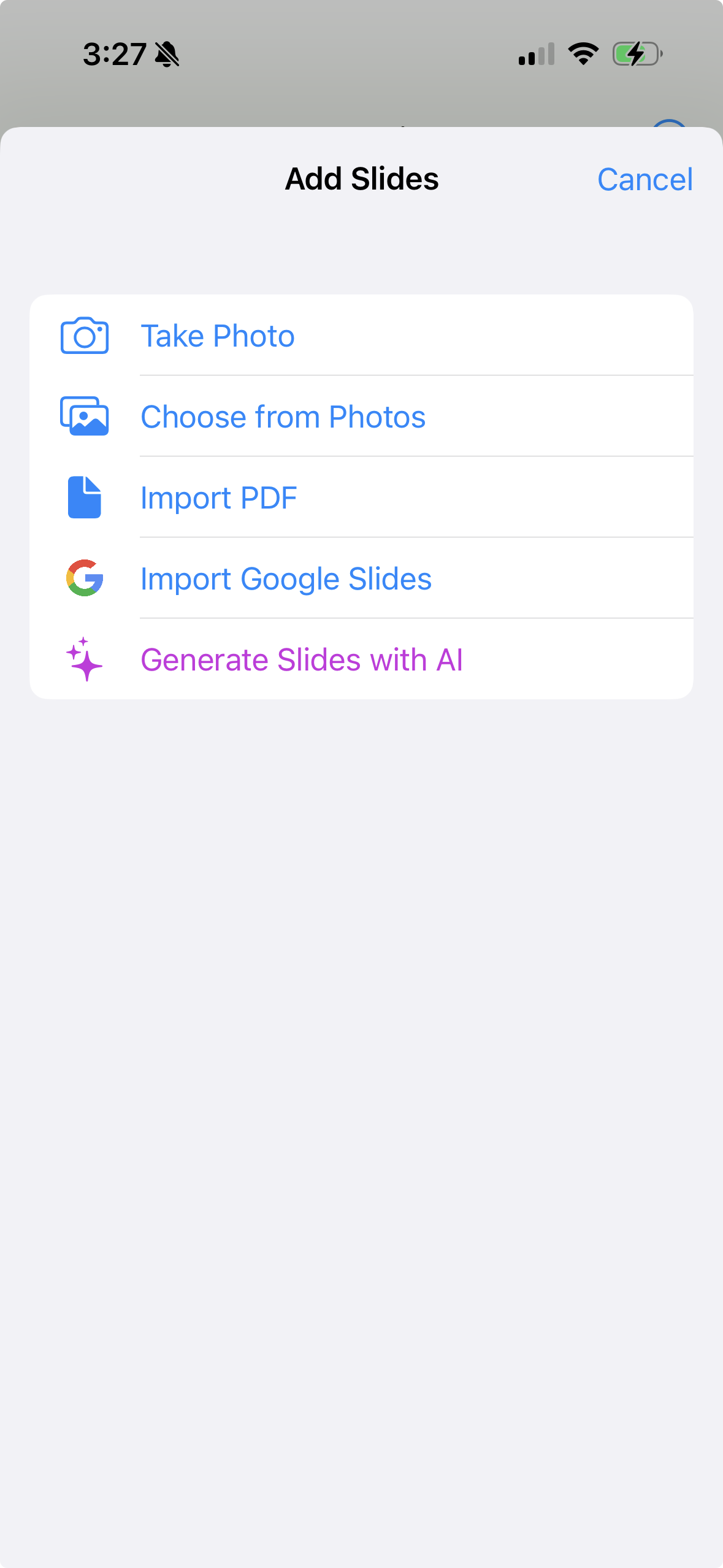
Create a project, tap Add Slides, then Import Google Slides. Sign in with Google, pick your presentation, and every slide comes in as an image, in order.
Reorder, delete or add slides afterwards — or mix in a PDF, photos, or slides generated from a topic with AI.
- 2
Narrate as you swipe
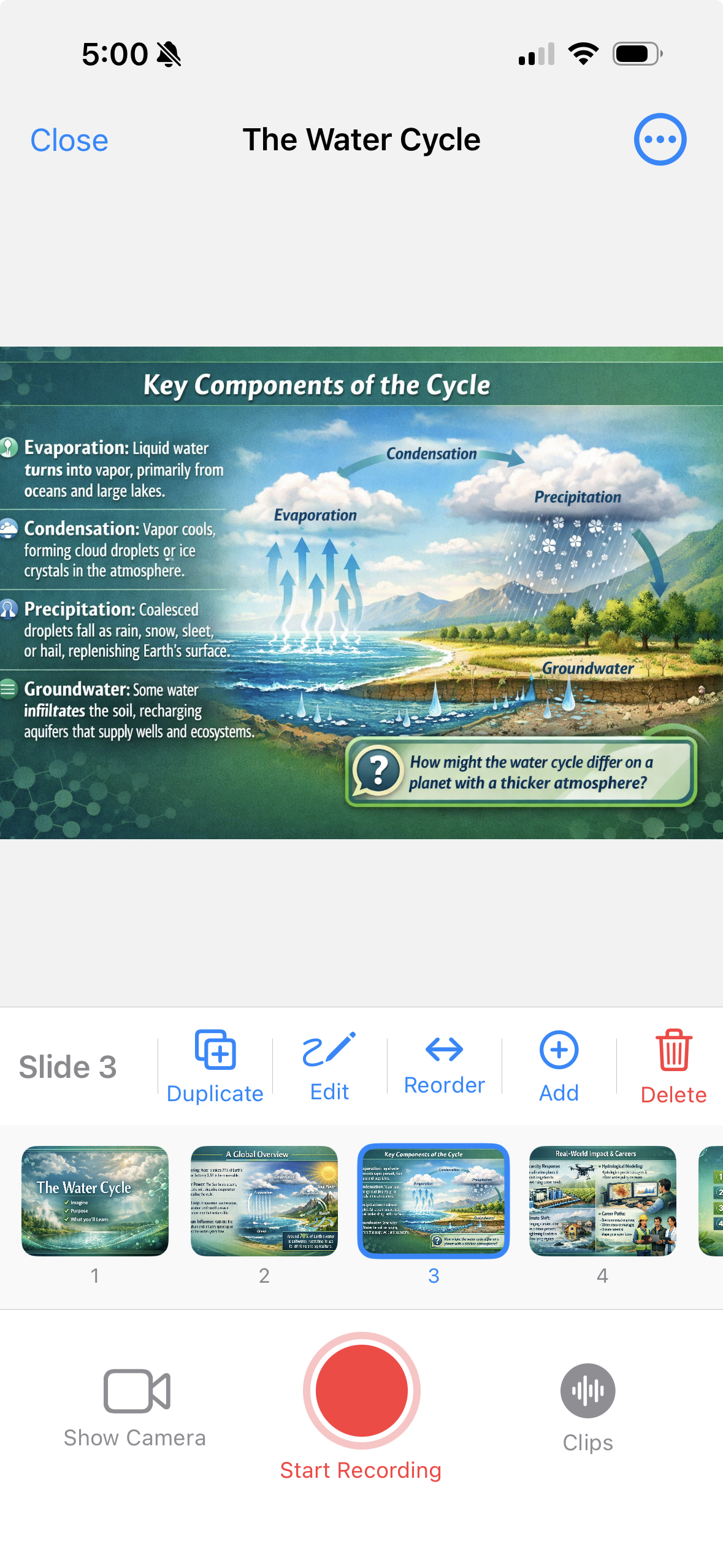
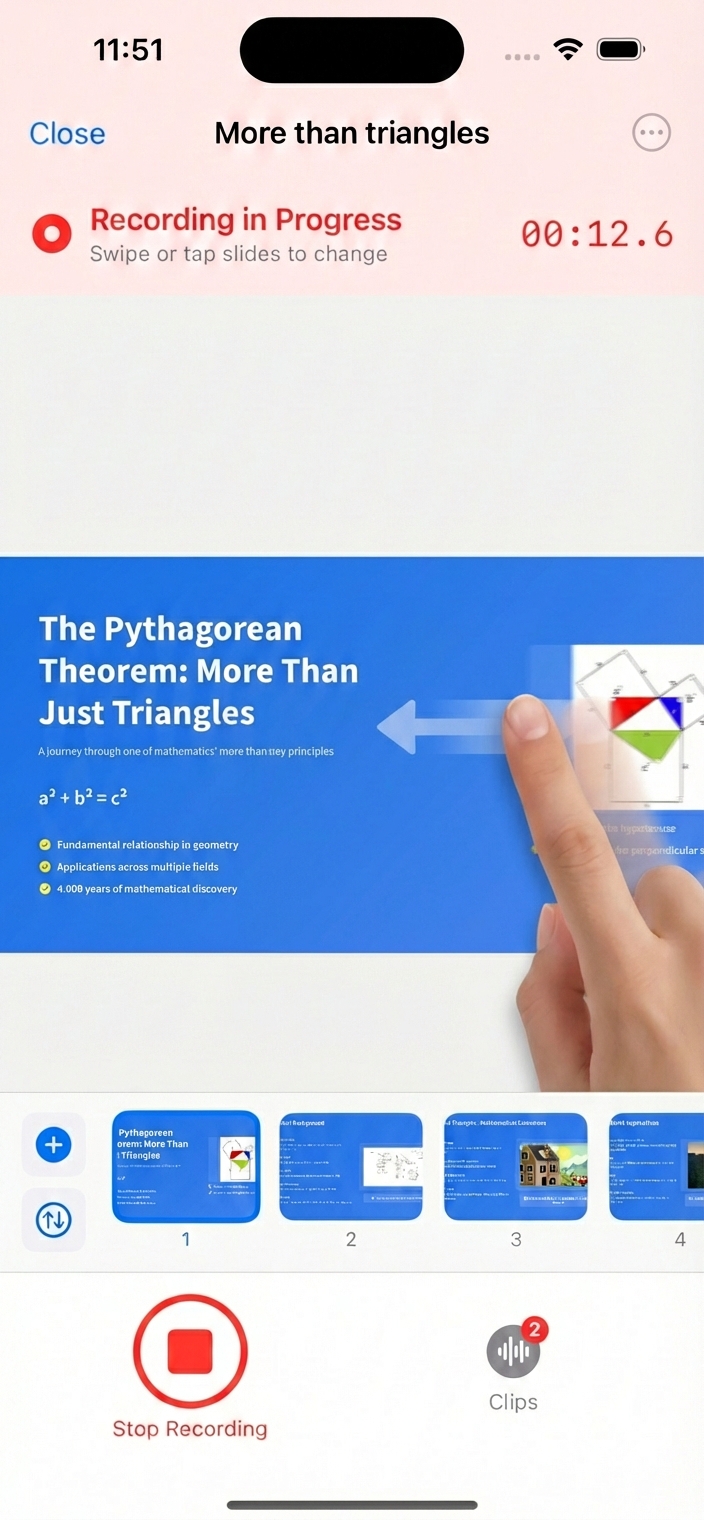
Tap record and talk through the deck, swiping to the next slide when you're ready — just like presenting. 30hands keeps your voice and slides in sync.
Each recording becomes a clip. Not happy with one section? Delete that clip and record it again — no need to redo the whole deck.
- 3
Export an MP4 or share a link
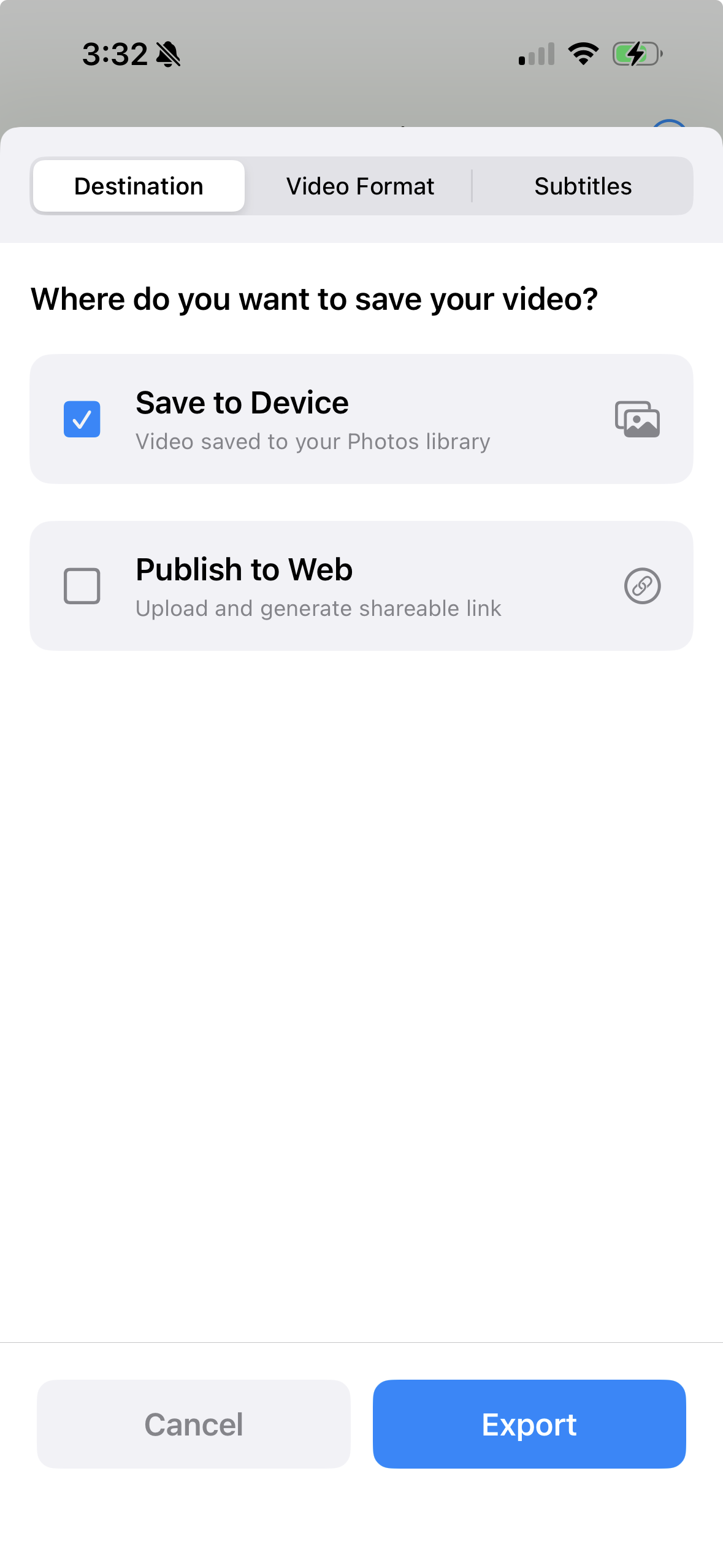
Export in landscape or portrait, with auto-captions if you want them. Upload the MP4 to your LMS, intranet or YouTube — or publish to the web and send a link. Viewers don't need an account.
Choose how slides change in the video: fade, cut, wipe, slide or zoom.
Why not just screen-record?
Fix one section, not the whole take
Clips map to the slides you swiped through, so a mistake costs you one section.
No timeline to learn
Swiping is the edit. There are no tracks, keyframes or render settings.
Captions without the busywork
Turn on auto-captions at export and 30hands transcribes your narration for you.
Your voice, not an avatar
Learners hear the person who knows the material — recorded on the phone already in your pocket.
Tips for a better narrated deck
- Trim the text. Slides built to be read aloud work best with a headline and a visual; say the details instead of showing them.
- Keep your speaker notes handy. Notes aren't imported, so have them open on another screen or printed.
- Record in short sections. Pausing between groups of slides gives you natural clips that are easy to redo.
- Find a quiet spot. Your phone's microphone is good; a quiet room makes it great.
Frequently asked questions
Is it free?
Yes, you can start free. The free plan includes 3 projects and videos up to 5 minutes, with a small 30hands watermark. Pro removes the watermark and the length and project limits.
Do my animations and transitions carry over?
No. Each slide is imported as a still image, in order. When you export, 30hands adds its own slide transitions — fade, cut, wipe, slide or zoom.
Are my speaker notes imported?
Not yet — only the slides come across. Keep your notes open on another screen or printed while you record.
Why don't I see my presentation in the list?
The picker shows presentations you own. If a deck was shared with you, open it in Google Slides, choose File → Make a copy, then import your copy.
What access does 30hands need to my Google account?
Read-only access to your Google Slides and Drive files, so it can list your presentations and import the slides. 30hands never edits your decks.
Can I do this on my computer?
Google Slides import is in the 30hands app for iPhone and iPad. Once your deck is imported, you can also open the project in the 30hands web app to record, export or share from your computer.
What about PowerPoint or Keynote decks?
Export the deck as a PDF, then use Import PDF in 30hands. The rest of the steps are the same.
Have a PowerPoint, Keynote or PDF instead? See how to turn a PDF into a video with voiceover. Or see everything 30hands can do on the features page, and compare plans on pricing.
Your deck is already done.
Make it a video.
Free on iPhone and iPad. No card needed.