Guide · PDF
Turn a PDF into a video with voiceover
Import a PDF, talk through each page in your own voice, and export a captioned MP4. Works with decks exported from PowerPoint, Keynote or Canva — and with handouts, reports and one-pagers too.
PDFs get skimmed. Walkthroughs get watched.
PDFs are where finished content ends up — the exported training deck, the policy summary, the onboarding one-pager. They're easy to send and easy to ignore.
A short narrated walkthrough gets watched, and it carries the context a document can't: what matters, what to skip, and why. You don't need to rebuild anything in a video editor to make one.
How to do it
Three steps in the 30hands app
- 1
Import your PDF
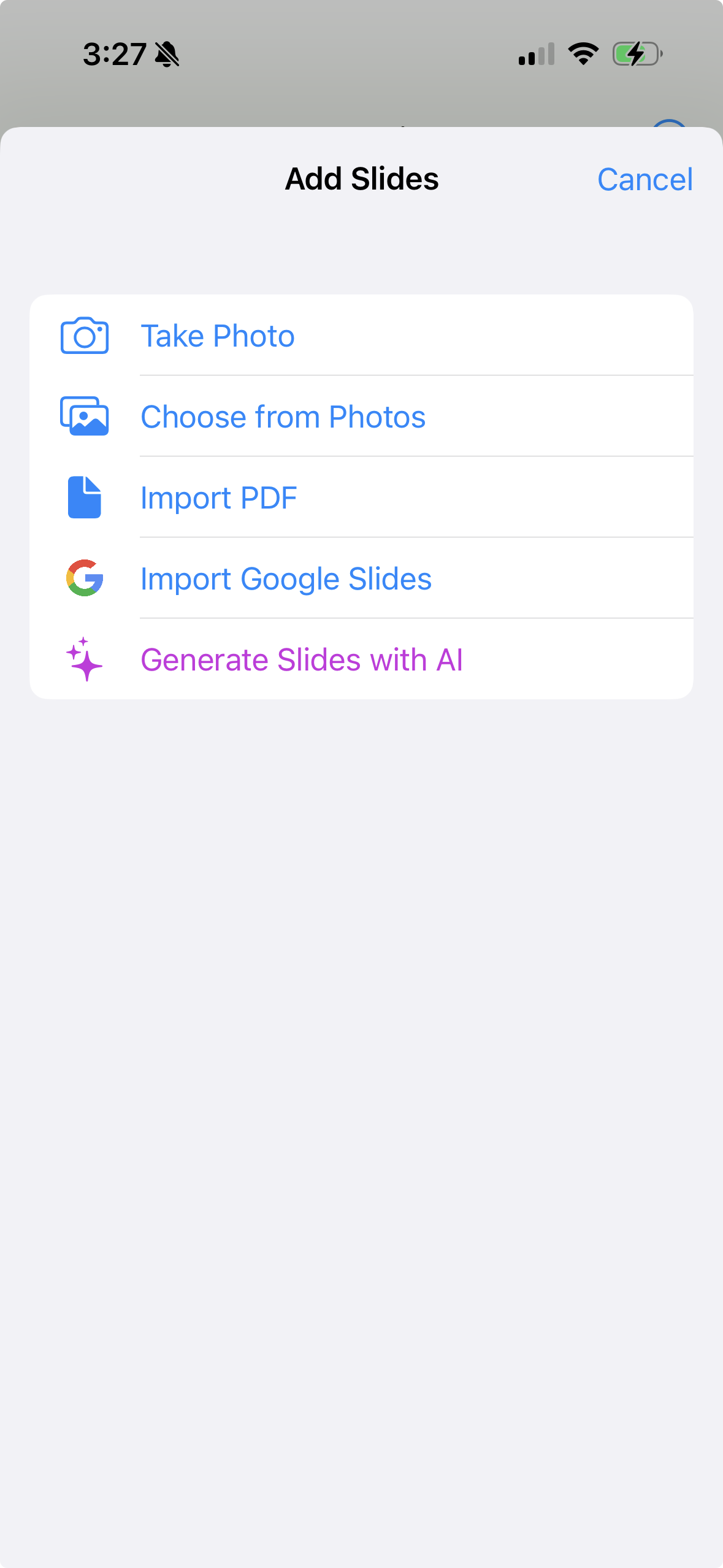
Create a project, tap Add Slides, then Import PDF, and choose the file from Files. Every page becomes an HD slide, in order.
Landscape pages come in at 1920×1080 and portrait pages at 1080×1920. Delete or reorder pages, or add photos and AI-generated slides.

- 2
Record your voiceover
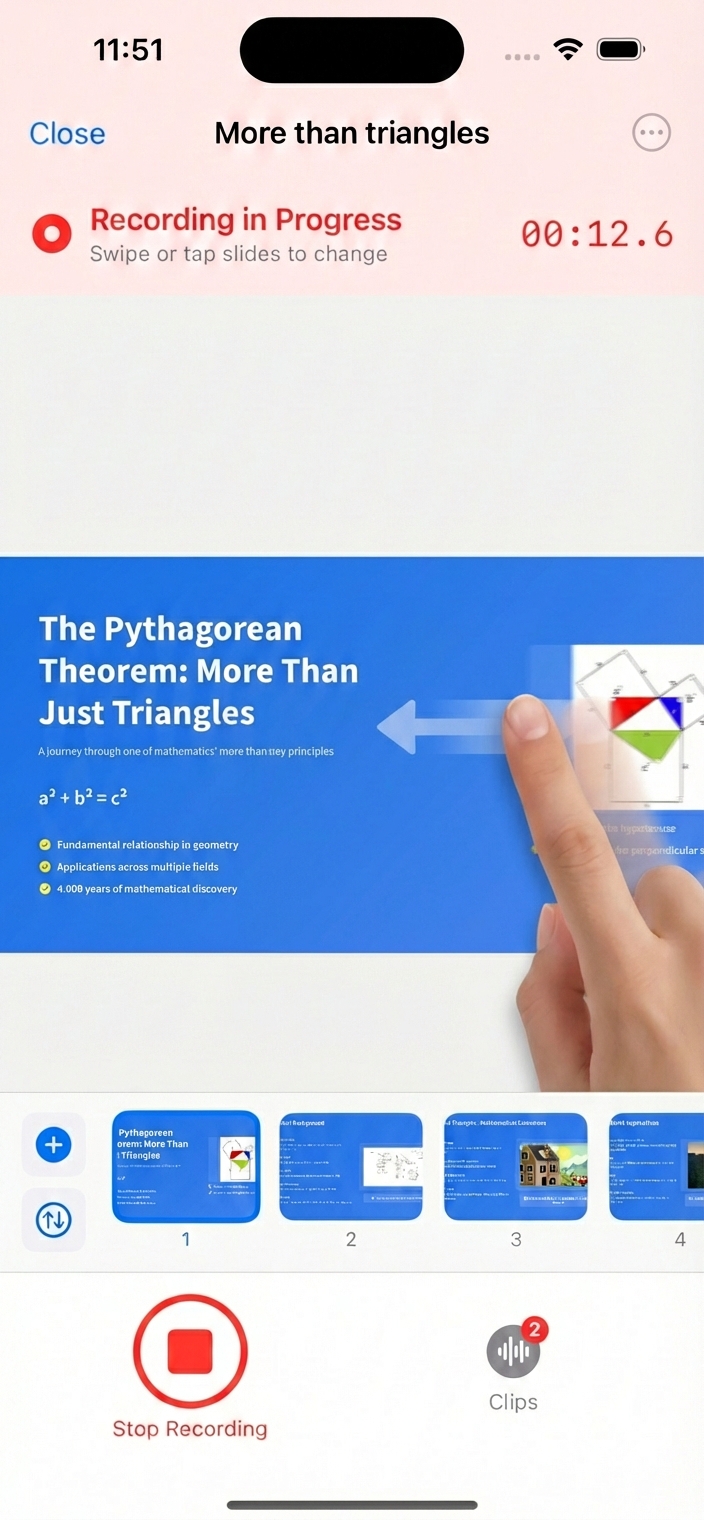
Tap record and explain each page, swiping to the next one when you're ready. 30hands keeps your voice and pages in sync.
Each recording becomes a clip, so a stumble costs you one section — delete that clip and record it again.
- 3
Export an MP4 or share a link
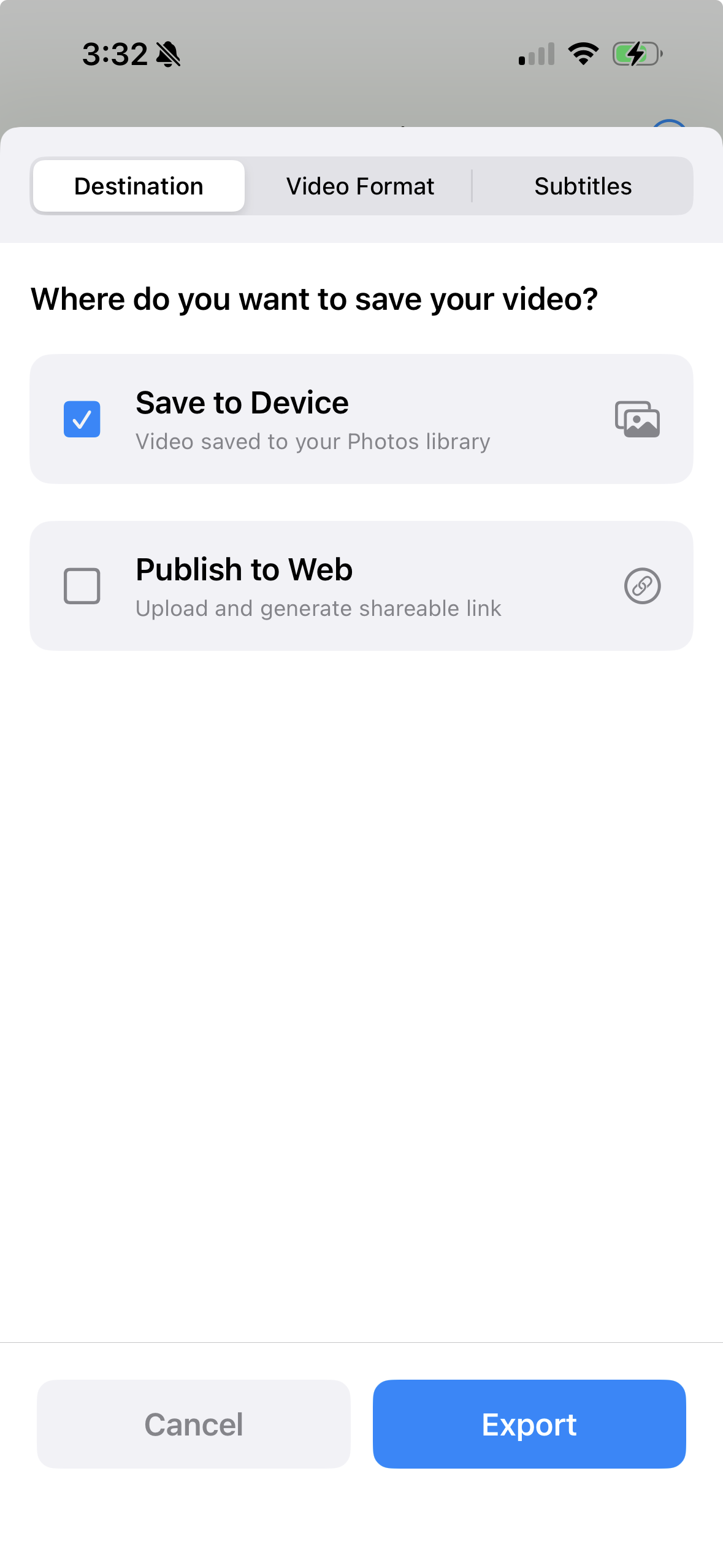
Export in landscape or portrait, with auto-captions if you want them. Upload the MP4 to your LMS, intranet or YouTube — or publish to the web and send a link. Viewers don't need an account.
Choose how pages change in the video: fade, cut, wipe, slide or zoom.
Works with the tools you already use
If it can be saved as a PDF, it can be narrated. Here's where to find the PDF option.
PowerPoint
File → Export (or Save As) → PDF
Keynote
File → Export To → PDF
Canva
Share → Download → PDF Standard
Word, Pages or Docs
Export or download as PDF — handouts and one-pagers work too
Using Google Slides? Skip the PDF — import your deck directly.
Tips for a better voiceover
- Narrate, don't read. Viewers can read the page. Use your voice for the why, the example, and what to do next.
- Drop the pages you won't talk about. Appendices and title pages can go; a shorter video gets finished.
- Dense page? Take your time. Stay on it while you walk through each part, then swipe on.
- Record in short sections. Pausing between groups of pages gives you natural clips that are easy to redo.
Frequently asked questions
Is it free?
Yes, you can start free. The free plan includes 3 projects and videos up to 5 minutes, with a small 30hands watermark. Pro removes the watermark and the length and project limits.
Does every page become a slide?
Yes. Each page of the PDF becomes one slide, in order. Delete or reorder any pages you don't want to narrate.
Do animations or embedded videos from my deck carry over?
No. A PDF is static, so animations, transitions and embedded media are not included. When you export, 30hands adds its own slide transitions — fade, cut, wipe, slide or zoom.
Can I use a portrait PDF, like a handout or report?
Yes. Portrait pages are imported as tall 1080×1920 slides and landscape pages as 1920×1080 slides, so you can export a portrait or landscape video without extra letterboxing.
Where does the PDF need to be?
Anywhere the iOS Files app can open it: On My iPhone, iCloud Drive, or storage apps such as Dropbox or Google Drive that show up in Files.
Can I mix PDF pages with other slides?
Yes. Add photos, a Google Slides deck, or slides generated from a topic with AI to the same project.
Can I do this on my computer?
PDF import is in the 30hands app for iPhone and iPad. Once your PDF is imported, you can also open the project in the 30hands web app to record, export or share from your computer.
See everything 30hands can do on the features page, or compare plans on pricing.
Your PDF is already written.
Give it a voice.
Free on iPhone and iPad. No card needed.